Managing Loyalty Programs in the Centrapay Business Portal

27 Jul 2026
Overview
A Loyalty Program is a built-in tool that helps your business grow repeat revenue and retain customers, without the complexity of building your own rewards system. Created in the Centrapay Business Portal, your program is instantly available to all Payap users, giving you a ready-made channel to drive engagement and bring customers back more often.
Note: Loyalty Program is only available to Payap businesses and merchants.
Key Benefits
Quick to launch, easy to manage
Create and configure your program directly in the Centrapay Business Portal, no technical background required.Reach all Payap users
Your program is automatically visible to every Payap user, increasing brand exposure and customer engagement.Flexible promotions
Create targeted promotions to attract new members and keep them coming back.
How Does It Work?
A Loyalty Program is built around three key components: the Loyalty Program itself, Promotions, and Rewards.
Your Loyalty Program acts as the container for your Promotions. Within it, you can create multiple Promotions to set different spending targets for customers. Each Promotion is linked to a Reward. When customers complete a Promotion, they earn the associated Reward, which can be redeemed at your merchant site.
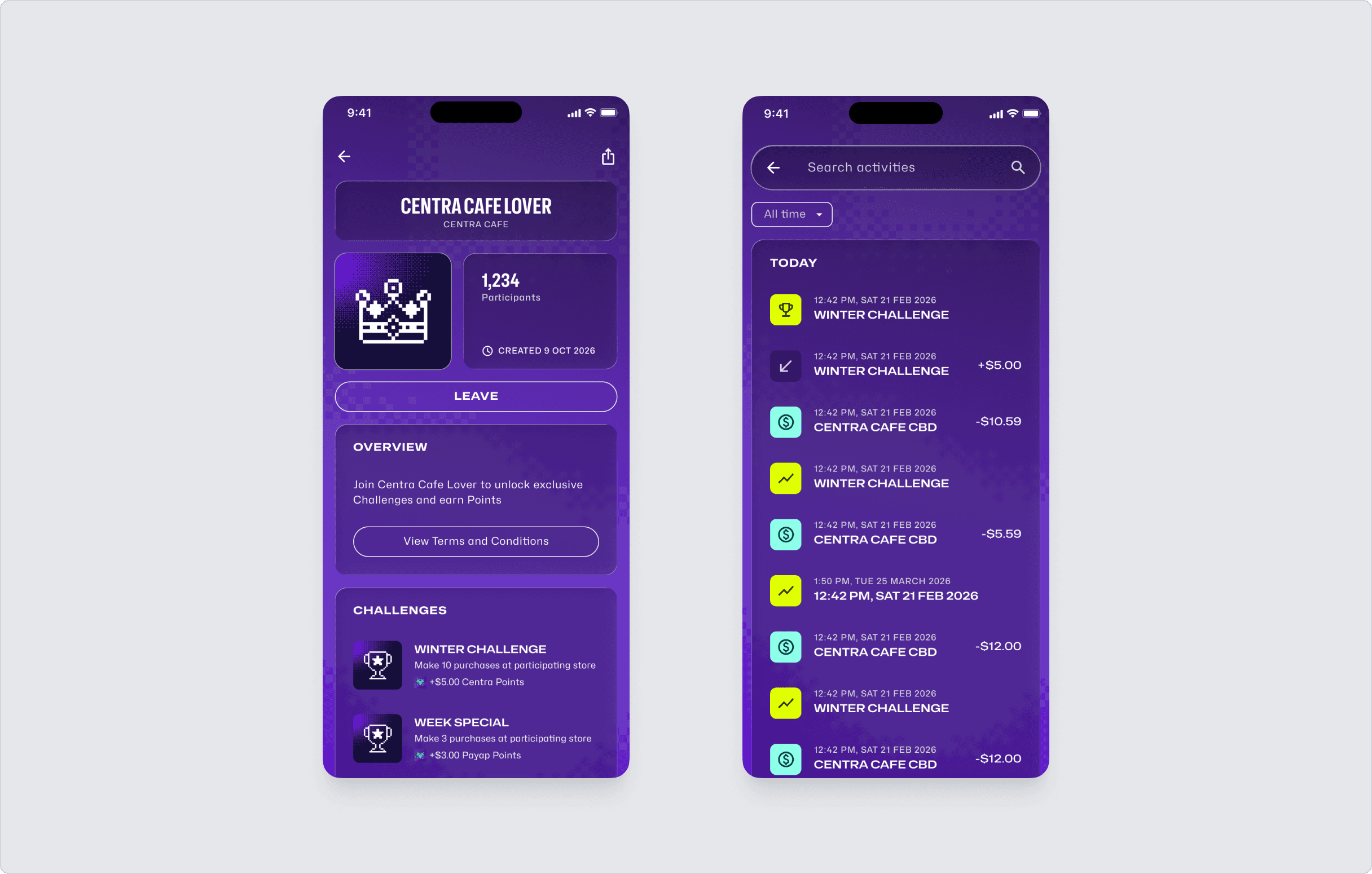
On the customer side, everything happens within the Payap app, where Promotions are displayed as Challenges.
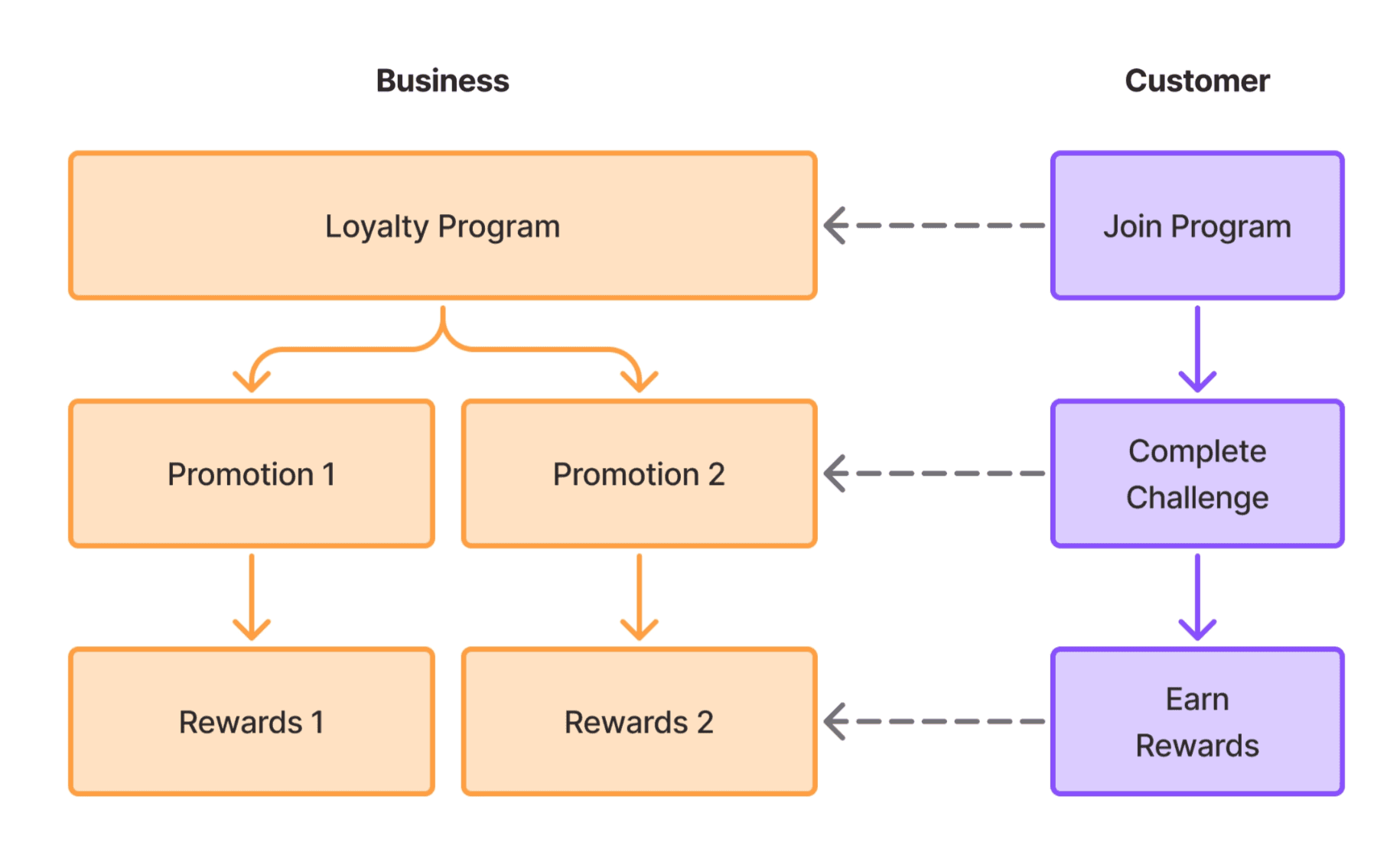
For details on each component, see the Loyalty Program, Rewards, and Promotions sections below.
How to Get Started?
First, make sure your business and merchant account are enabled and activated on Payap.
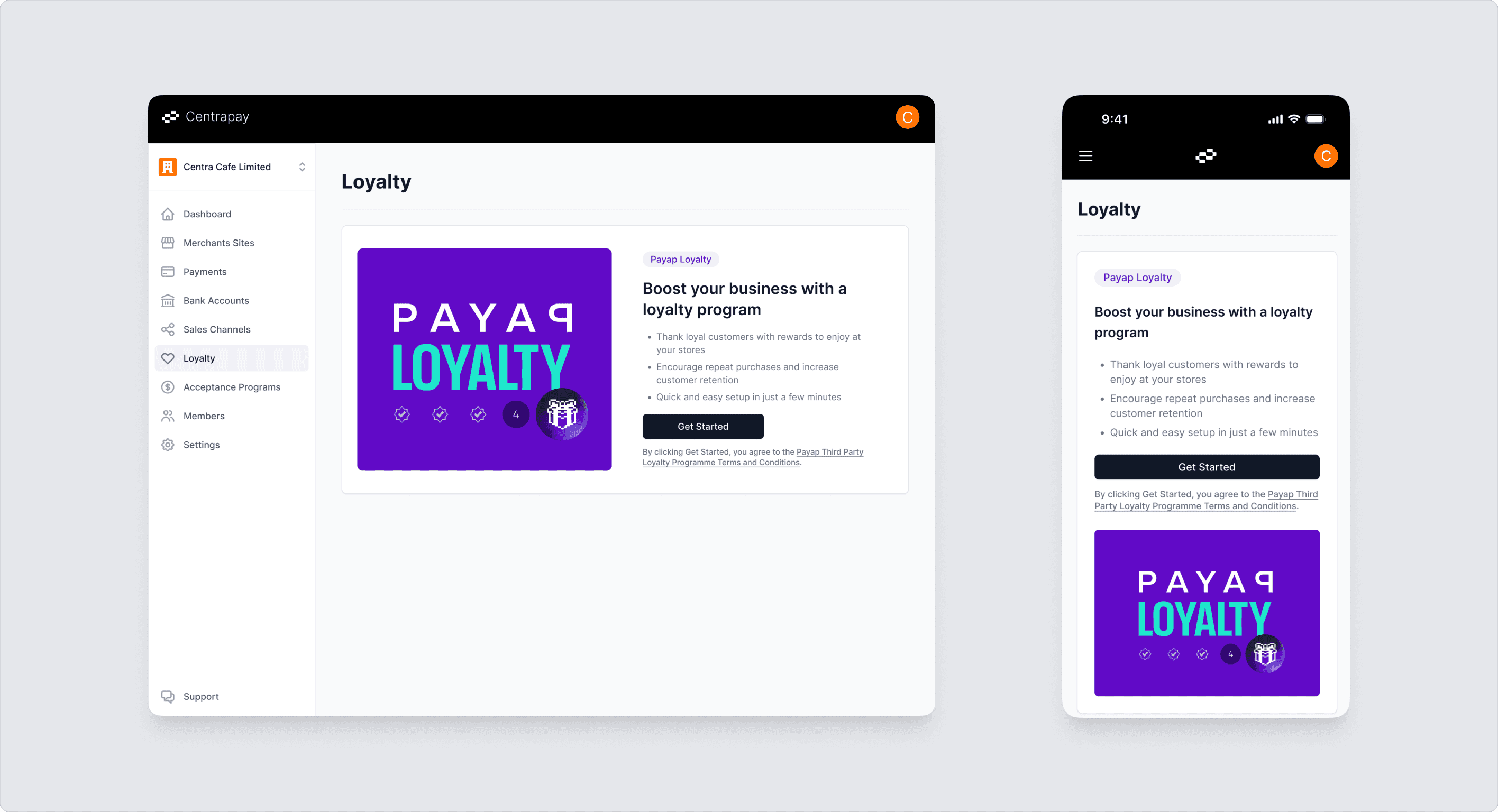
Then, navigate to Loyalty in the left-hand menu of the Business Portal. This will take you to the Loyalty Program overview page, where you'll find a brief introduction to the feature. When you're ready, click Get Started to begin the setup process.
Note: By clicking Get Started, you agree to our Terms and Conditions.
Loyalty Programs
Create a Loyalty Program
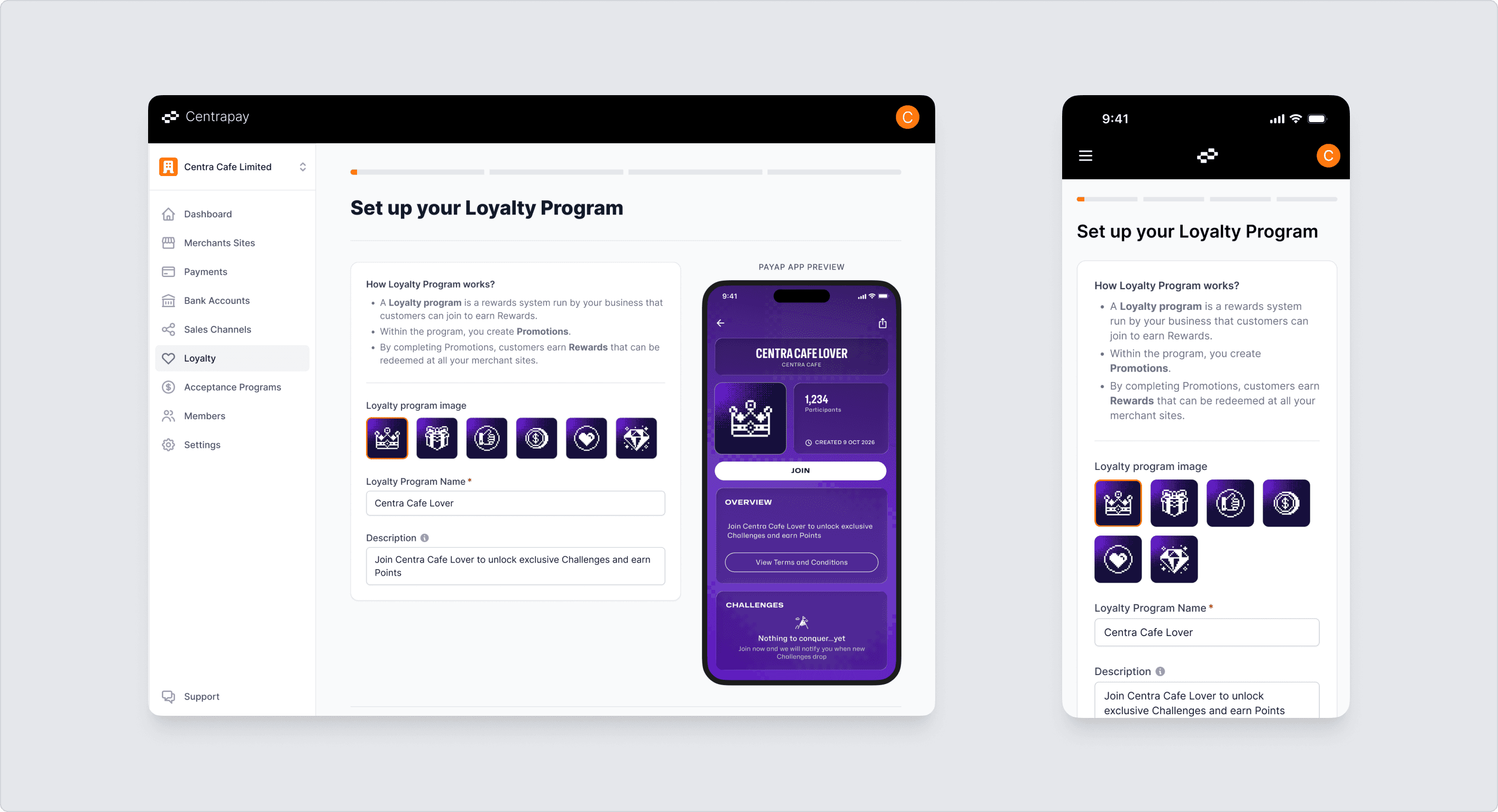
When setting up a Loyalty Program for the first time, you will be guided through an initial configuration process. The first step is creating your Loyalty Program.
Here, you can select a program image, set a name, and write a description for your program. All changes are reflected in real time in the preview panel on the right, which shows exactly how your program will appear to customers in the Payap app.
Note: Once a Loyalty Program has been created and published, it cannot be modified.
View and Manage Your Programs
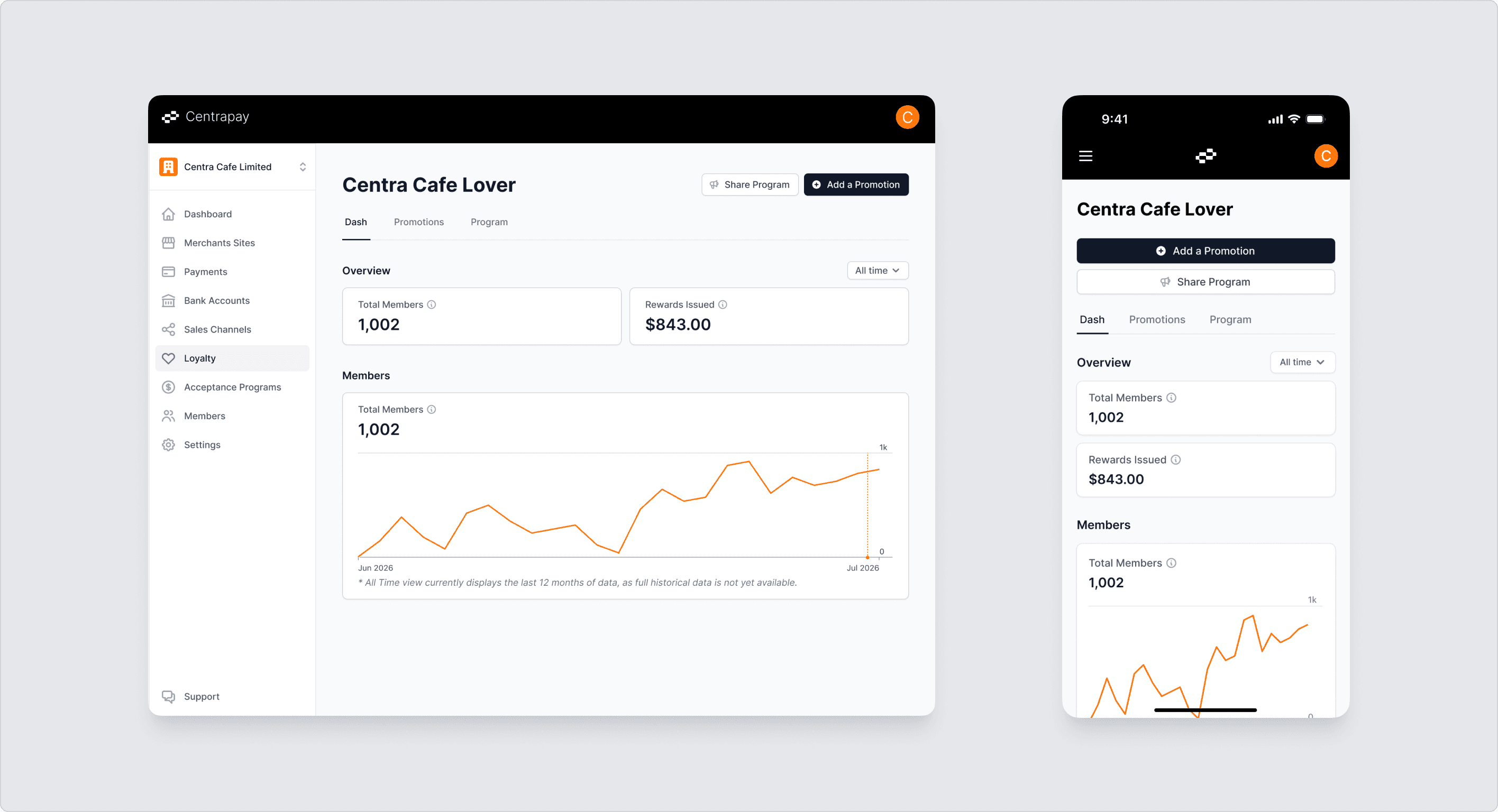
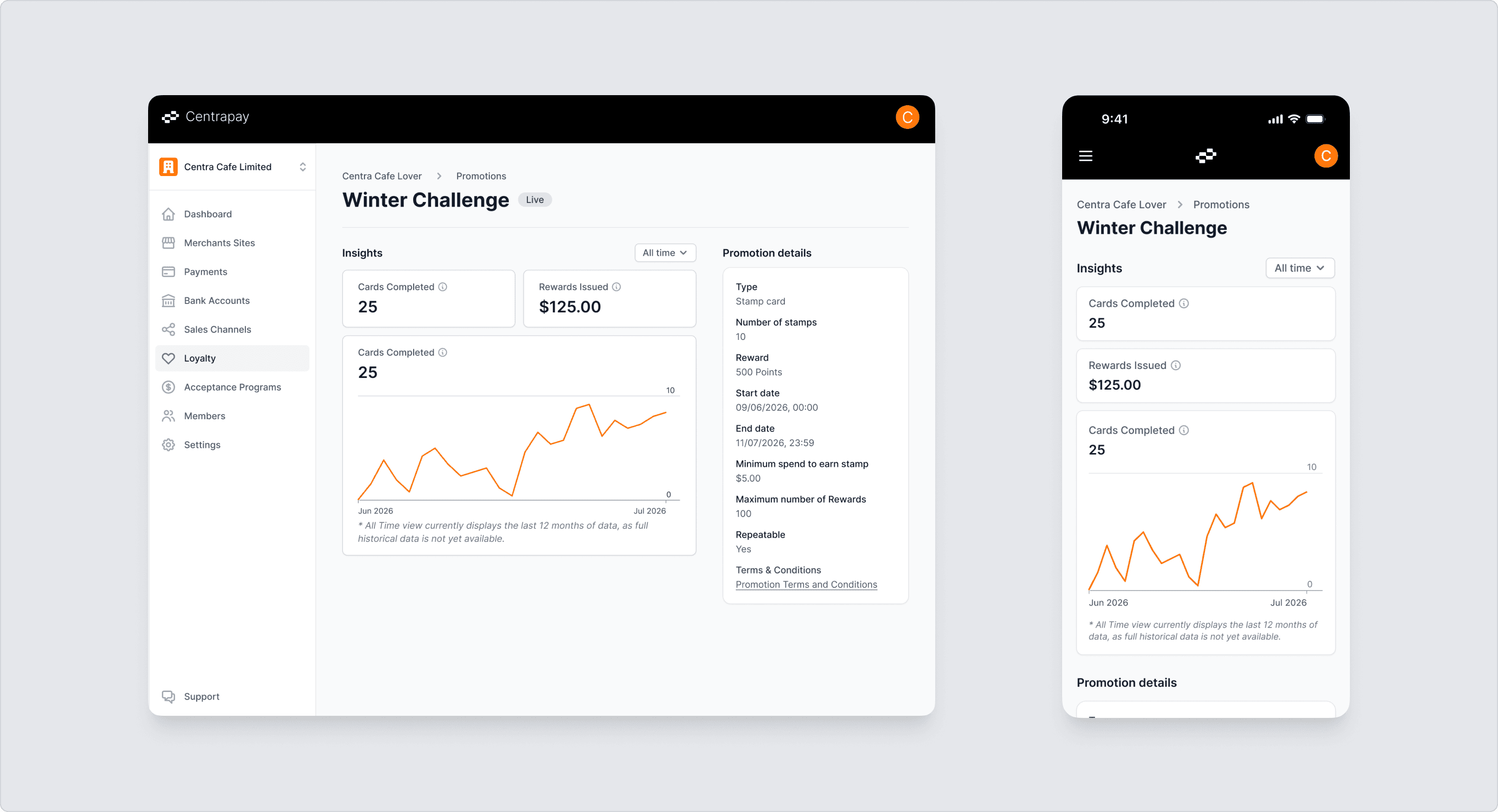
Once created, you can view your program details under Loyalty, including program analytics, Promotions, and configuration details.
Customer Experience
Joining a Program
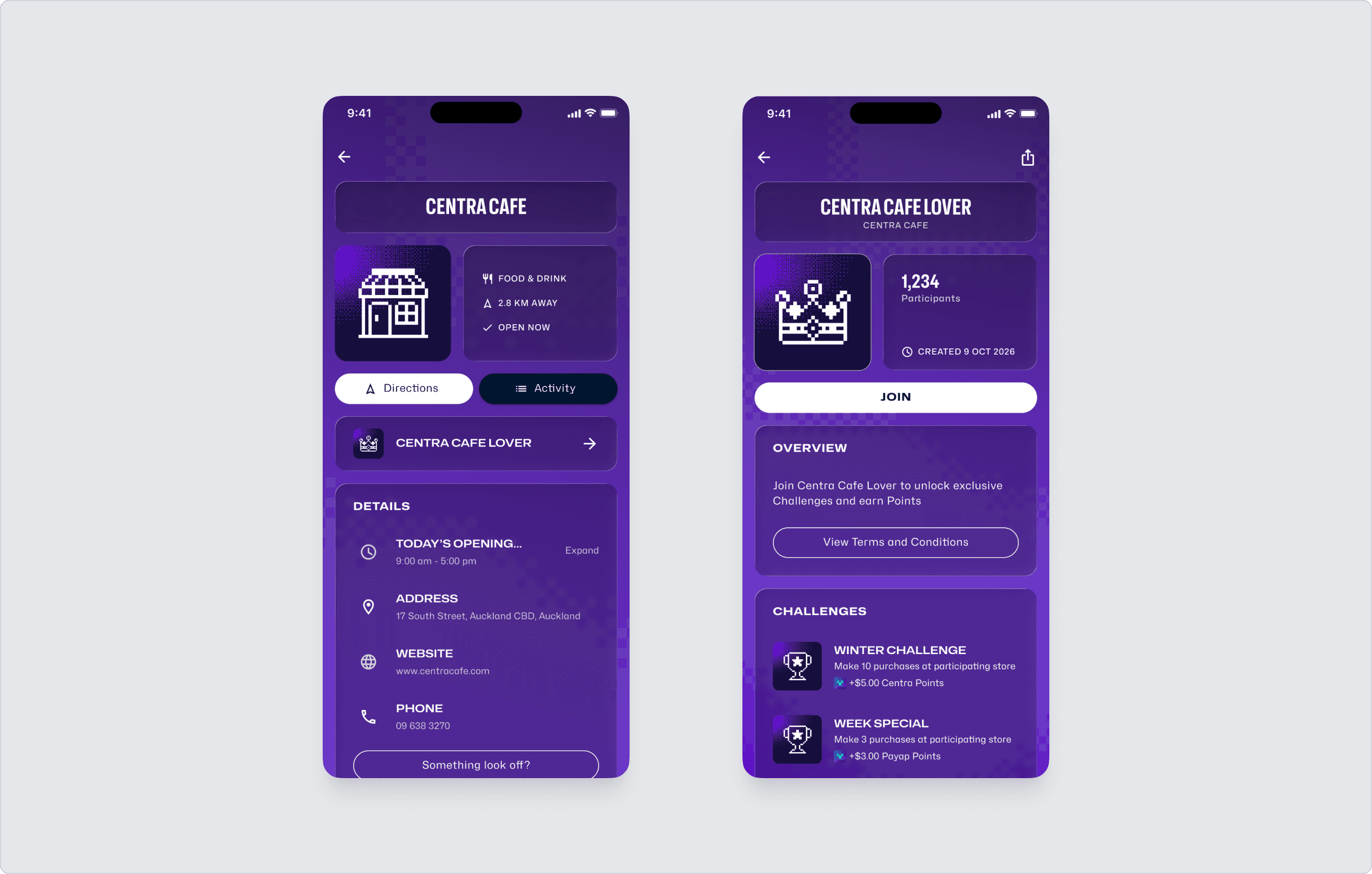
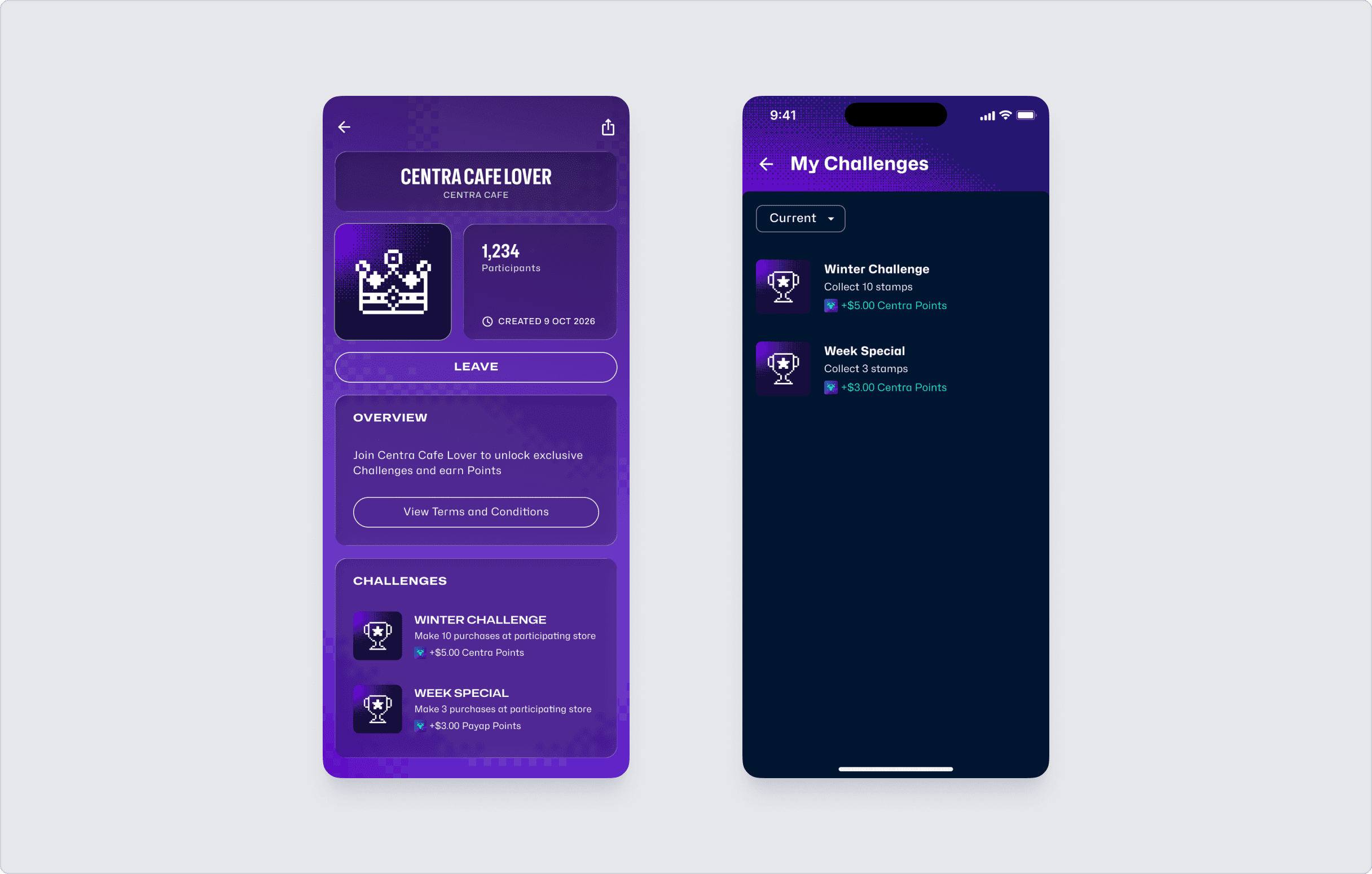
Customers can discover your Loyalty Program directly in the Payap app, for example by finding your merchant on the map or visiting your merchant details page.
Customers can also join at the point of payment. When someone pays with Payap at one of your sites that is running a Loyalty Program, they are automatically prompted to join. This makes signing up effortless, and your staff can simply invite customers to "Pay with Payap to join," enrolling them on the spot.
Once a customer joins your program, they are automatically enrolled in all active Promotions you have set up.
Leaving a Program
If a customer leaves your Loyalty Program, any Rewards they have earned will not be lost. They can still redeem their Rewards at your merchant site within the validity period.
If a customer leaves and later rejoins your program, their progress across all Promotions will be restored to where they left off.
Rewards
What Are Rewards?
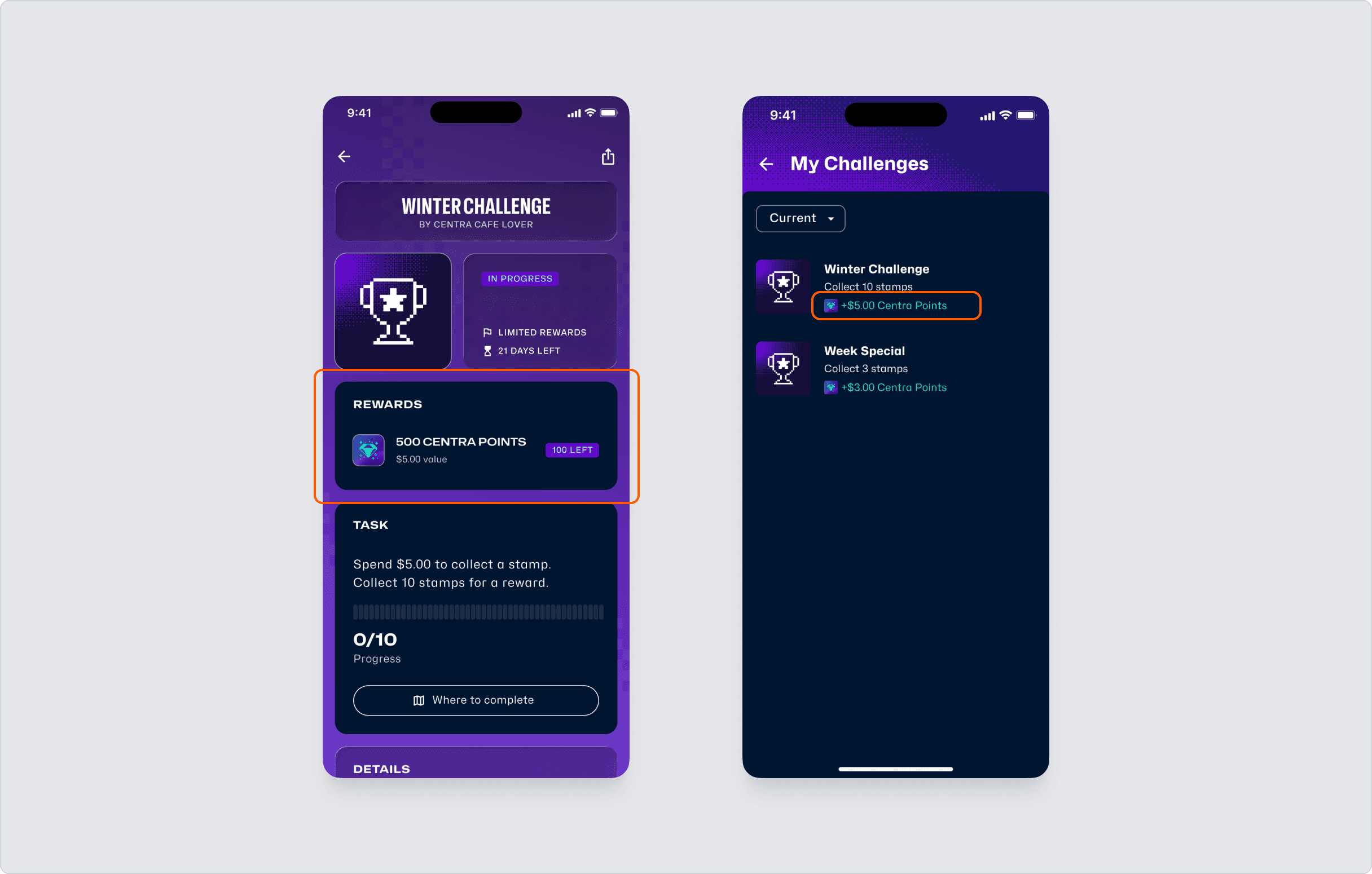
Rewards are the incentives you offer to customers who complete your Promotions. Currently, the only available Reward type is Points, with more types coming in the future.
Note: Rewards are not settled as cash payments, but transaction records can be viewed in your transaction history.
Reward Types: Points
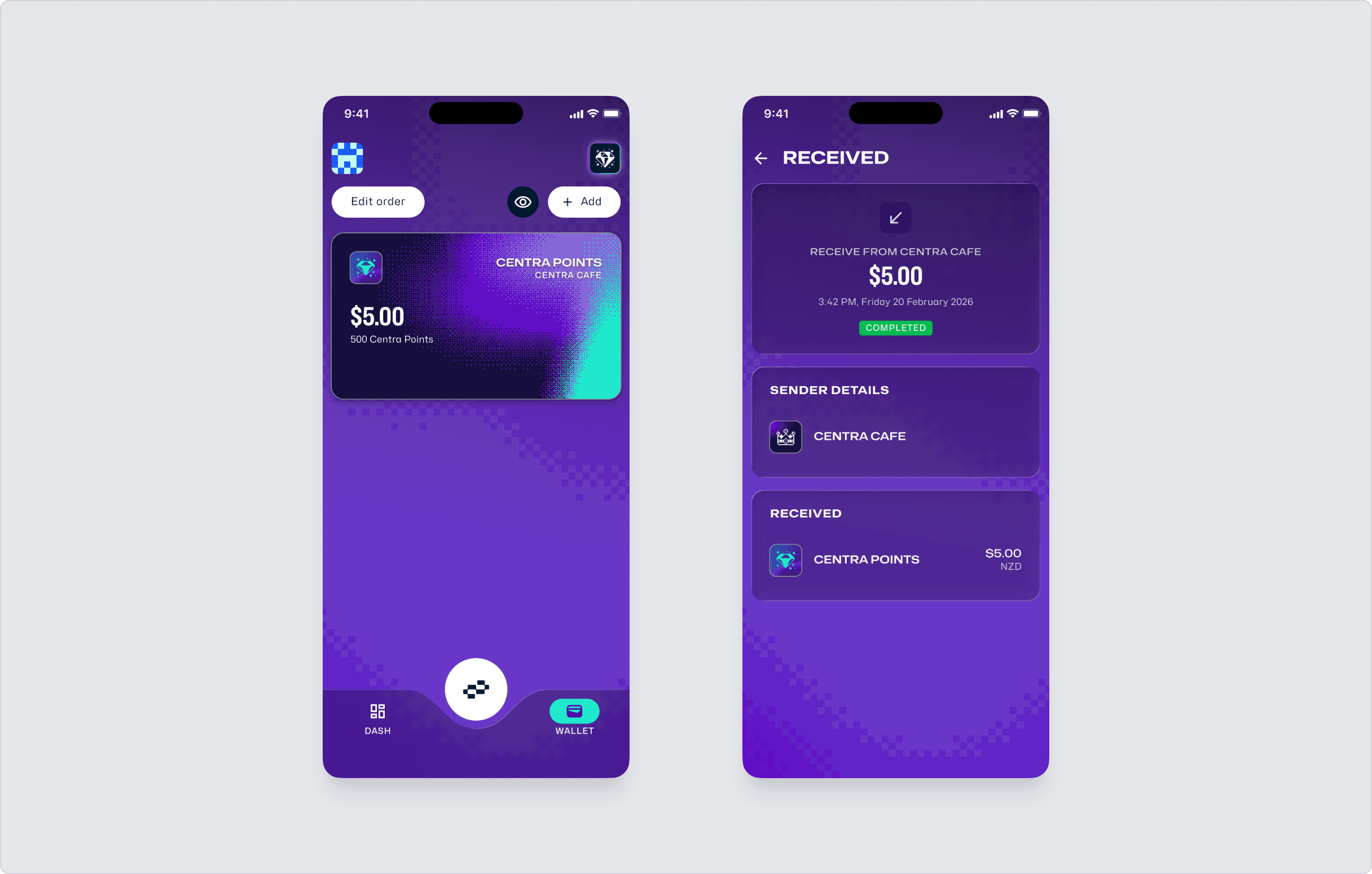
Points are a type of Reward. 1 Point = $0.01 NZD. Once earned, customers can see their Points balance and a corresponding card in their Wallet.
Note: Points are valid for 3 years from the date they are earned. Any Points that remain unused after 3 years will automatically expire and be forfeited.
Create a Reward: Points
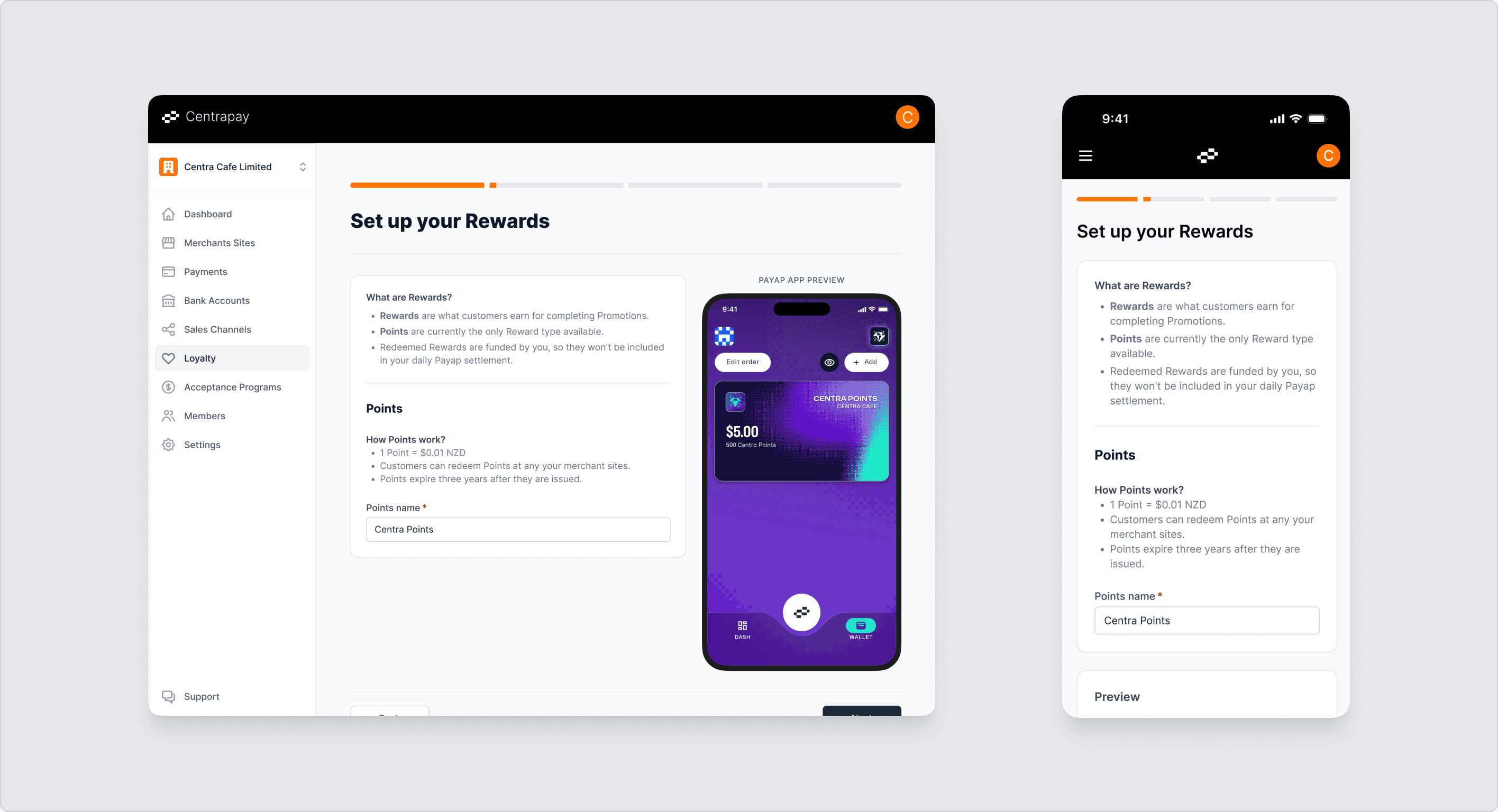
When setting up a Loyalty Program for the first time, configuring Points is the second step in the initial setup process. Here, you can set a name for your Points. The preview panel on the right shows how your Points card will appear in your customers' Wallets.
Customer Experience
Earning Rewards
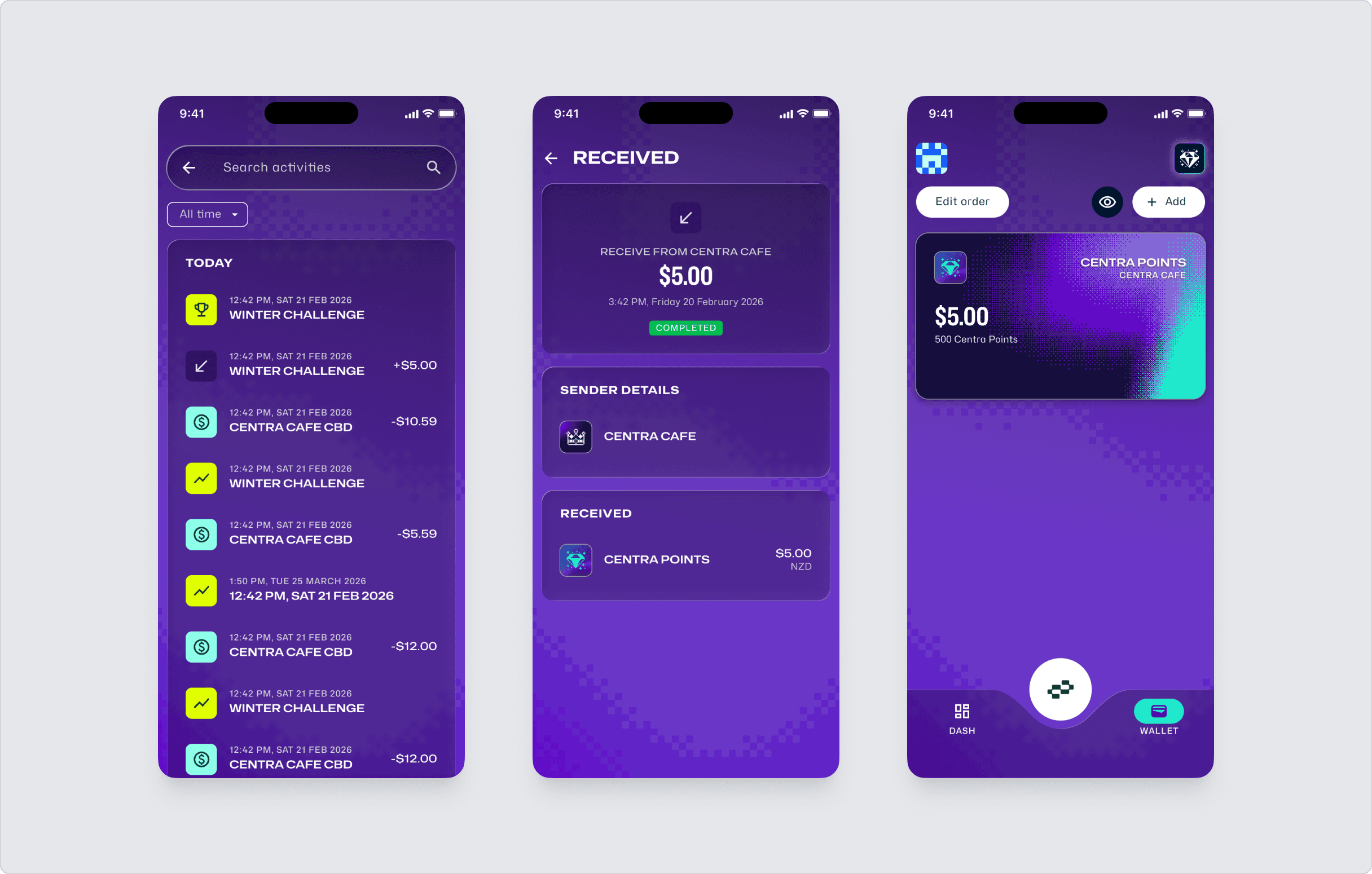
Customers earn Rewards by completing Promotions (displayed as Challenges in the Payap app). The earned amount is accumulated on their Points card in the Payap Wallet.
Spending Rewards
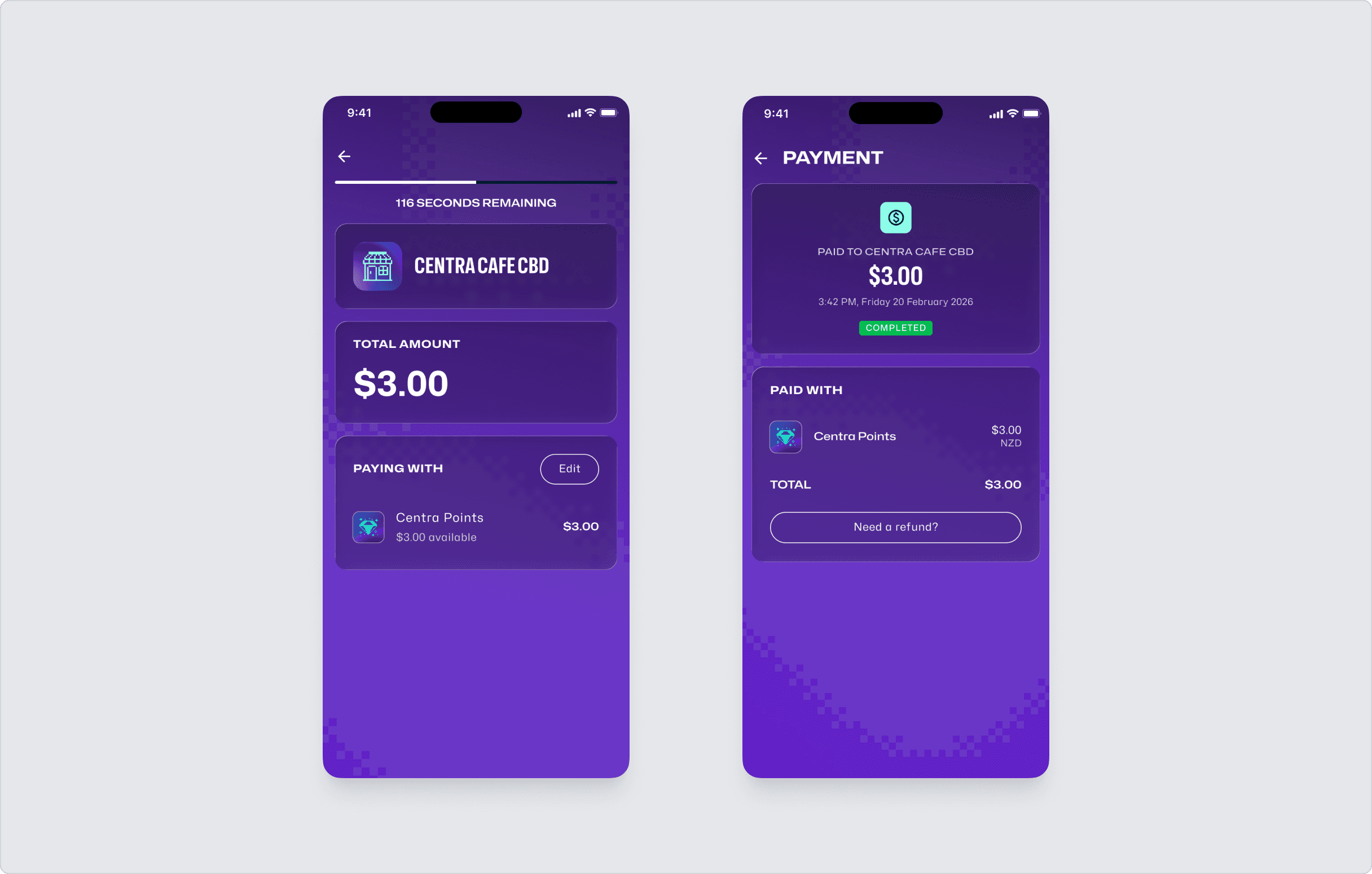
Customers can use their Points at your merchant site to offset purchases.
Note: Even if a customer leaves your Loyalty Program, they can still redeem any Points that are within the validity period.
Promotions
What Is a Promotion?
A Promotion is a rewards-based task created under your Loyalty Program, designed to encourage customers to return and spend more. On the customer side, Promotions are displayed as Challenges in the Payap app.
Currently, the only available Promotion type is Stamp Card, with more types planned for the future.
Promotion Types: Stamp Card
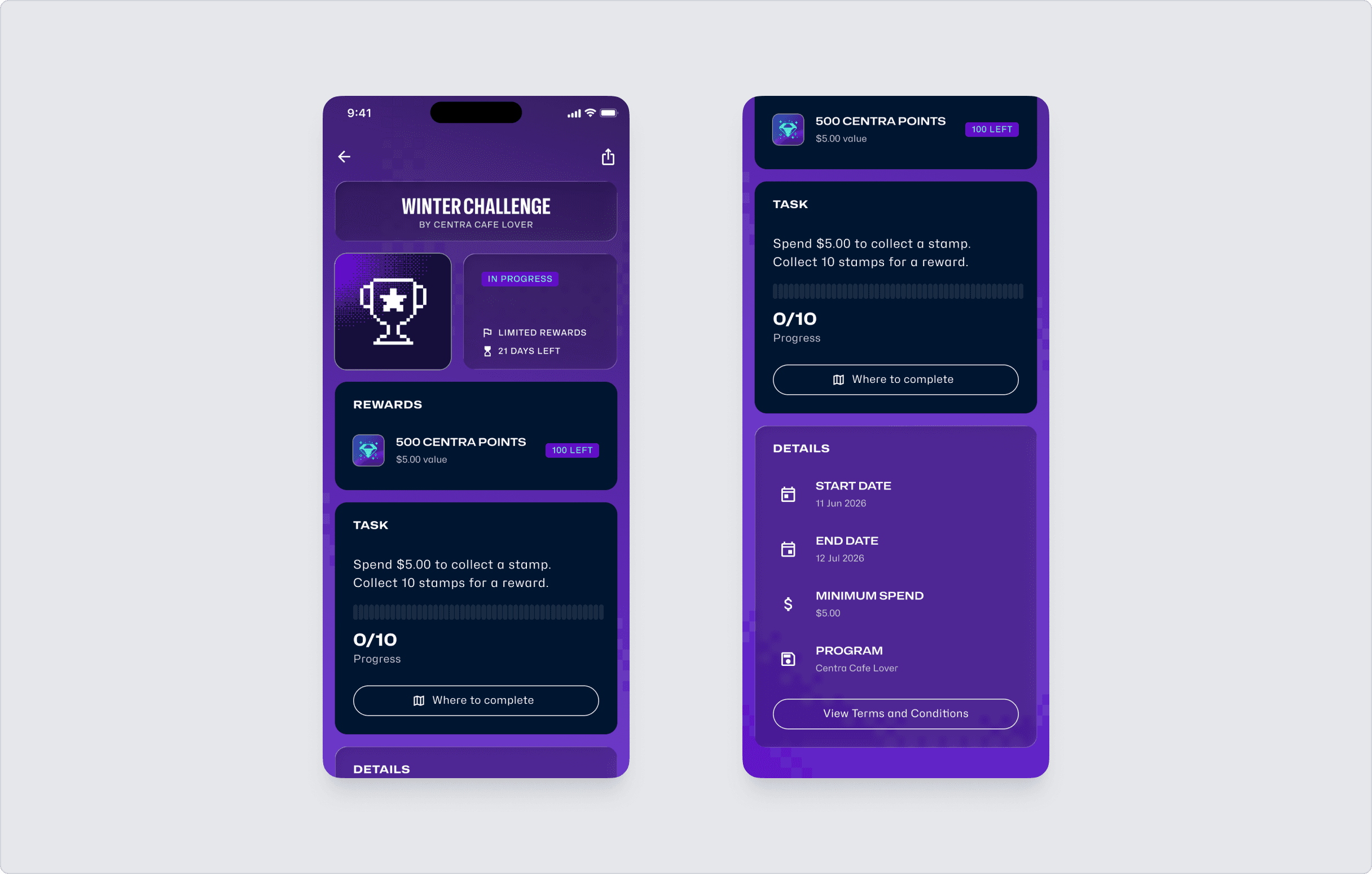
A Stamp Card is a Promotion mechanism where customers collect Stamps by making qualifying payments. Once they reach the target number of Stamps, they receive the corresponding Reward.
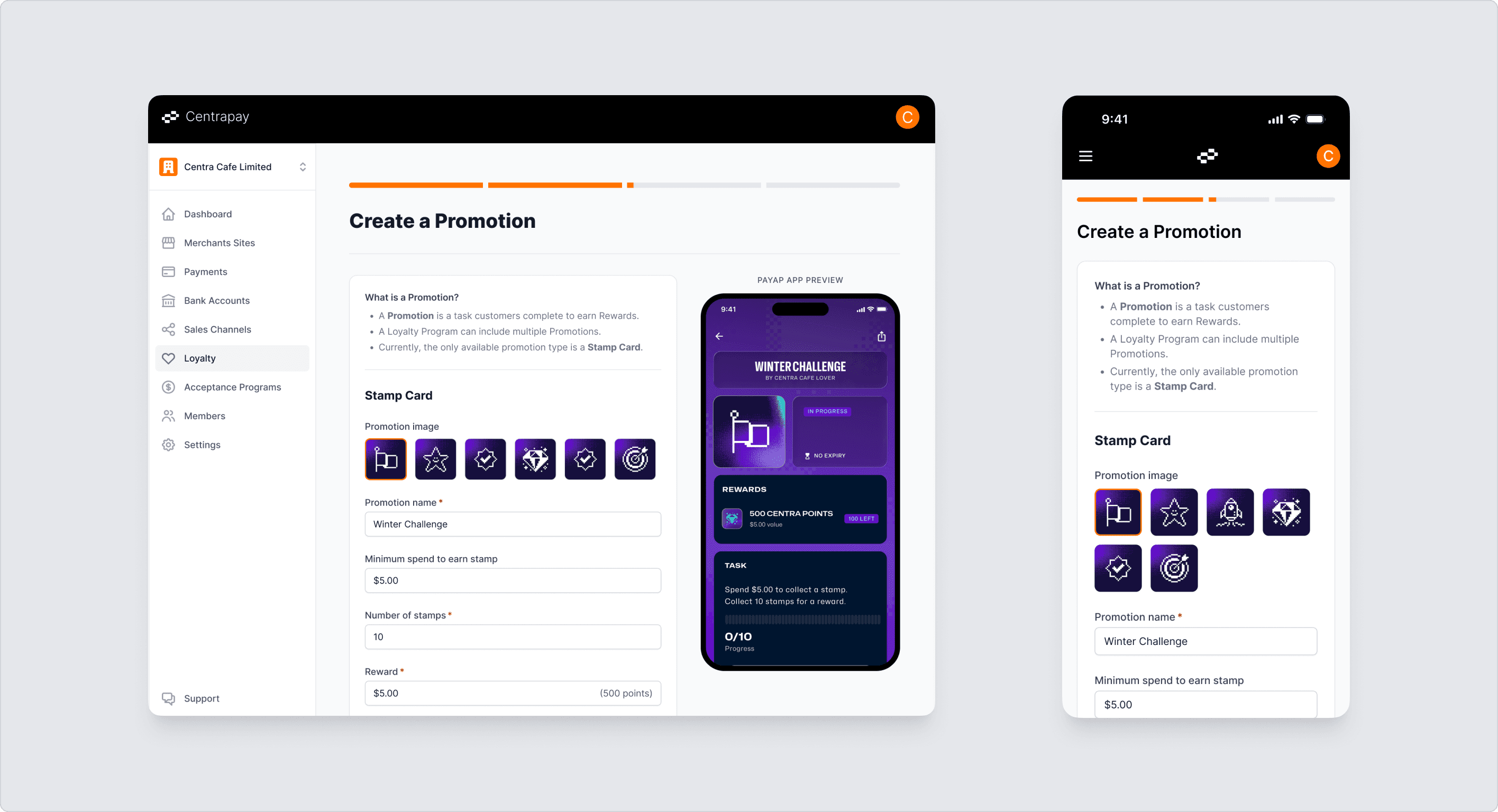
Create a Promotion: Stamp Card
Creating a Promotion is the third step in the initial Loyalty Program setup process.
During setup, you can configure the following:
Image and name: The visual and title displayed to customers in the Payap app.
Minimum spend to earn stamp: The smallest amount customer need to spend in one go to earn a stamp.
Number of stamps: The number of Stamps required to earn a Reward
Reward: The Reward amount customers receive upon completion
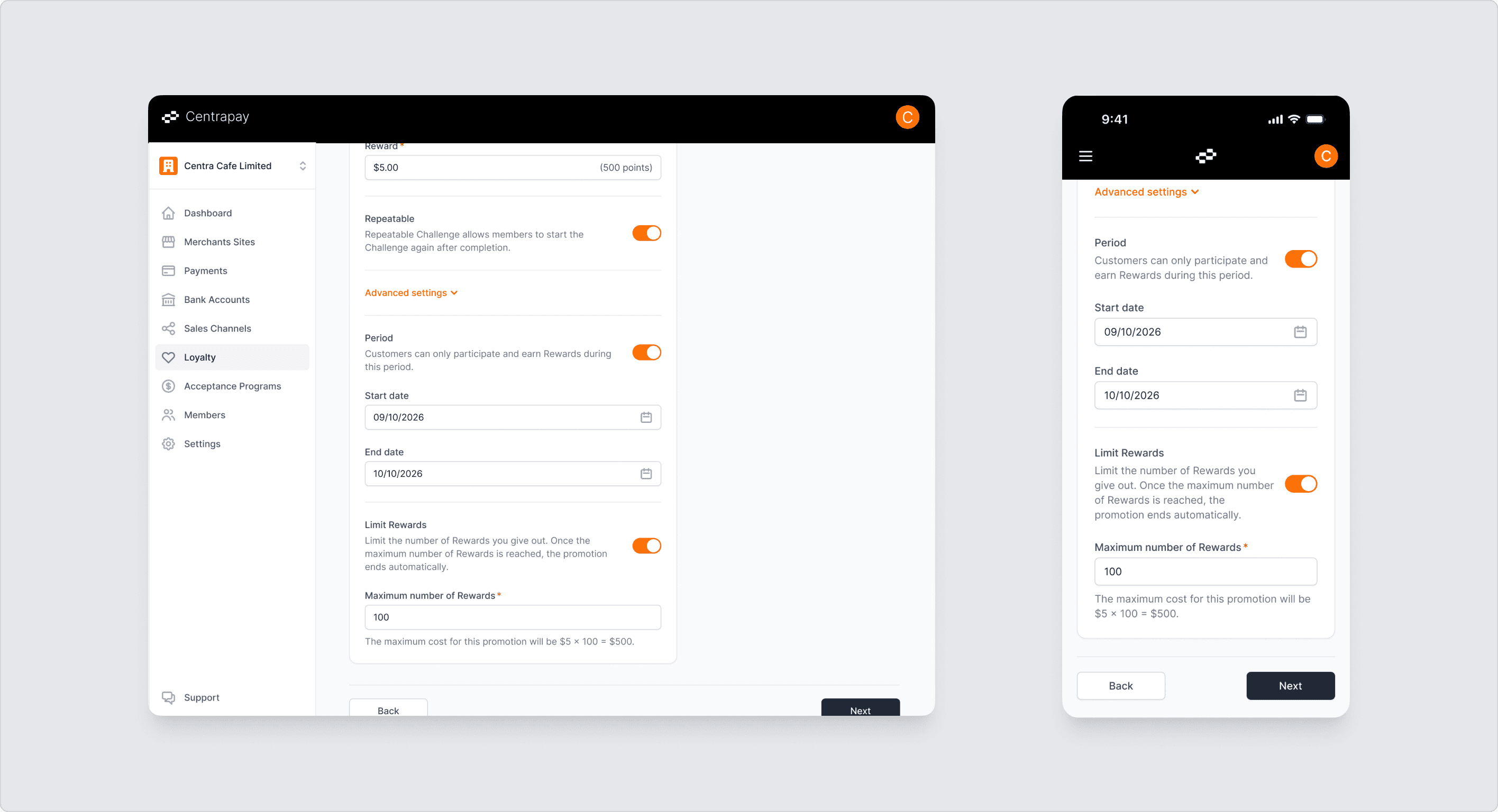
Additional settings:
Repeatable: When enabled, customers who complete a Stamp Card will automatically receive a new blank Stamp Card, allowing the cycle to continue.
Period: Set a start and end date for the Promotion. Customers can only participate and earn Rewards during this period. If left disabled, the Promotion starts immediately upon publishing and has no end date.
Maximum number of Rewards: The maximum number of Rewards that can be distributed. Customers who complete the Promotion after the limit is reached will not receive a Reward. If left disabled, there is no cap and all customers who complete the Promotion will receive their Reward.
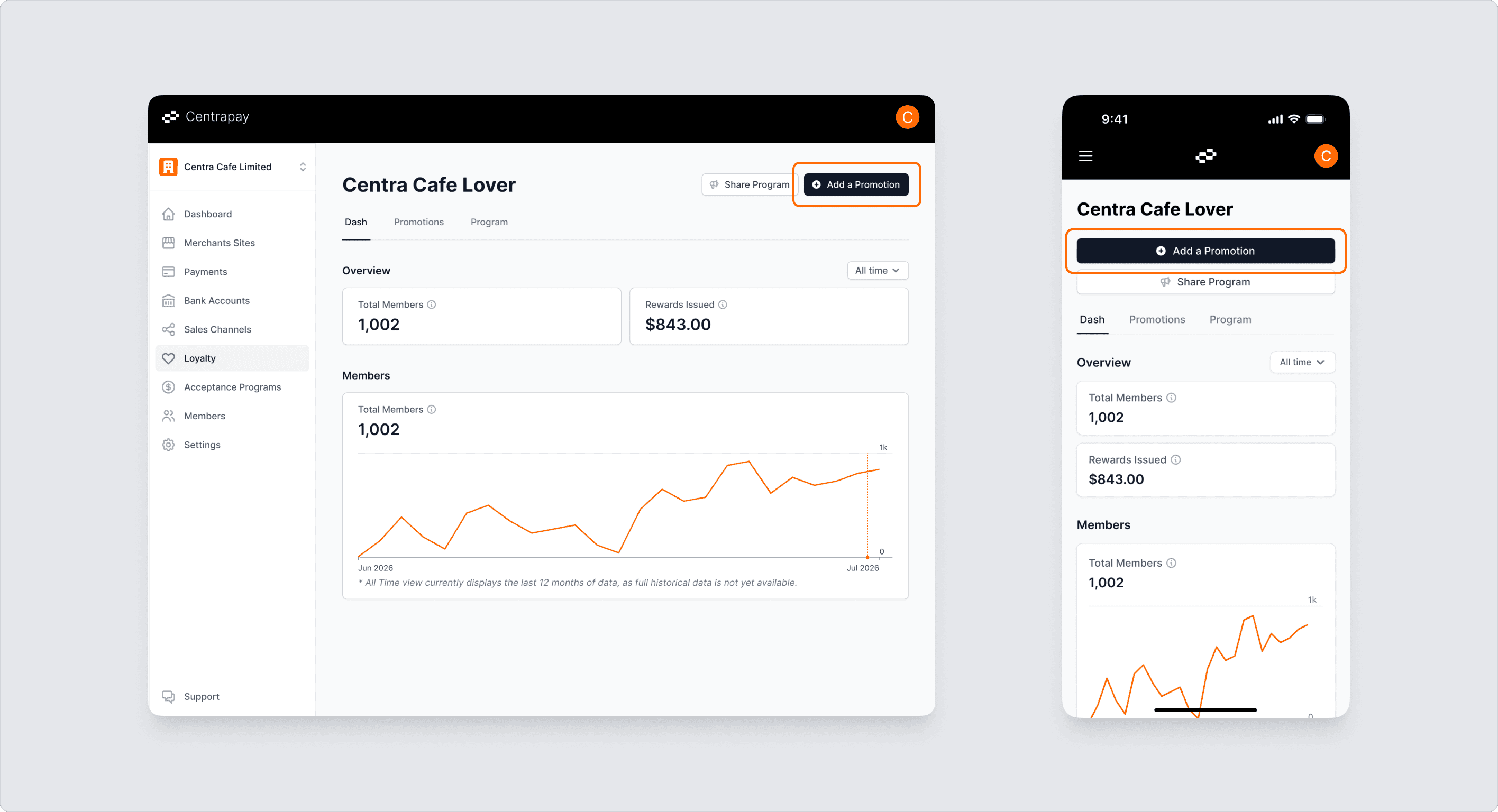
You can also create additional Promotions at any time from the Promotions tab within your Loyalty Program.
Note: If multiple Promotions are running at the same time, a single qualifying payment may be automatically counted toward the progress of more than one Promotion.
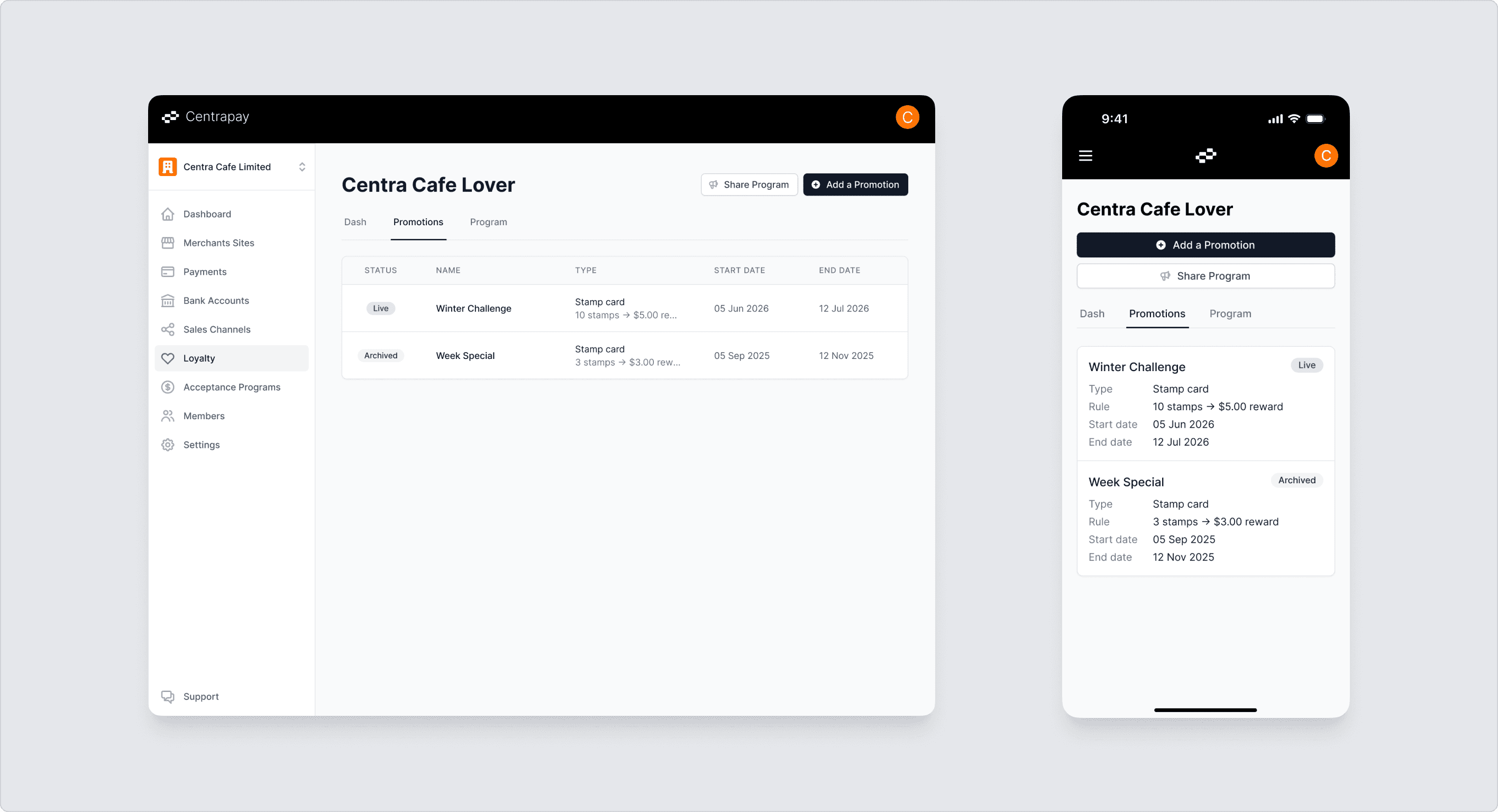
View and Manage Your Promotions
Once created, you can view your promotions details under Promotion tab, including analytics and details.
Customer Experience
By default, all merchants under your business are included in your Promotions. This means customers can make qualifying purchases at any of your merchant sites to make progress, and redeem their Rewards at any of your merchant sites as well.
Qualifying payments are automatically counted toward Promotion progress. No manual confirmation is required from the customer.
FAQ
Q: Does the Loyalty Program go through settlement?
A: No. Rewards distributed and redeemed through your Loyalty Program are not settled through Centrapay or Payap. These costs are borne by you. You can still view the related transaction records in your transaction history.
Q: How do I make changes to the Program or Promotion?
A: Once your Program or Promotion has been published on the Business Portal, it can no longer be edited directly.
If you need to make changes, please contact Centrapay. Our team will review your request and determine whether the changes can be accommodated. During this process, your Program or Promotion will be temporarily closed, and affected members will be notified of any updates.
